
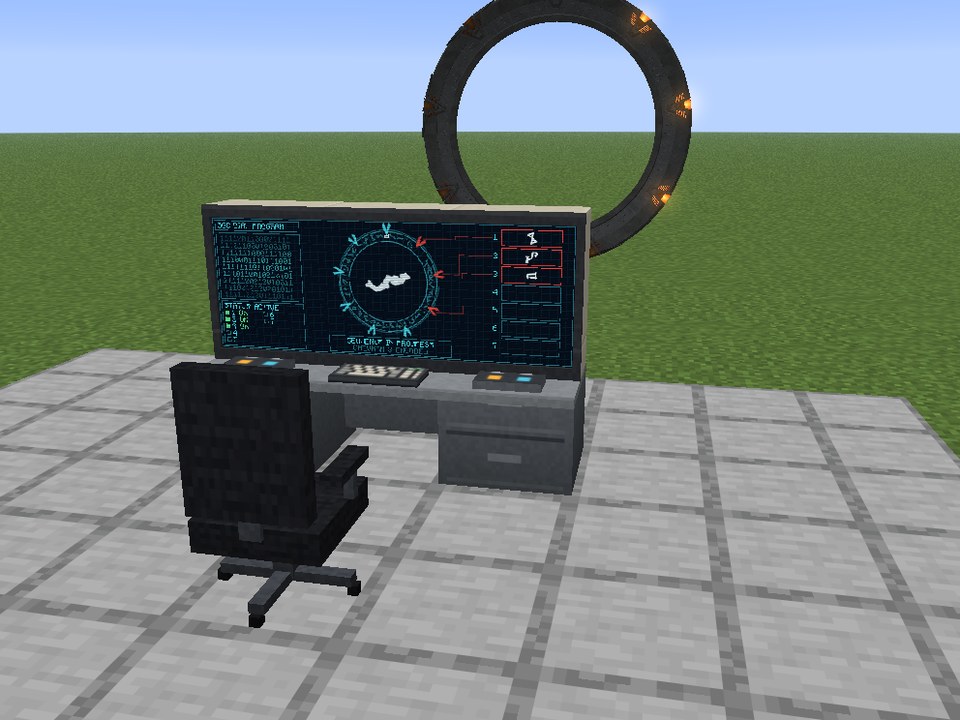
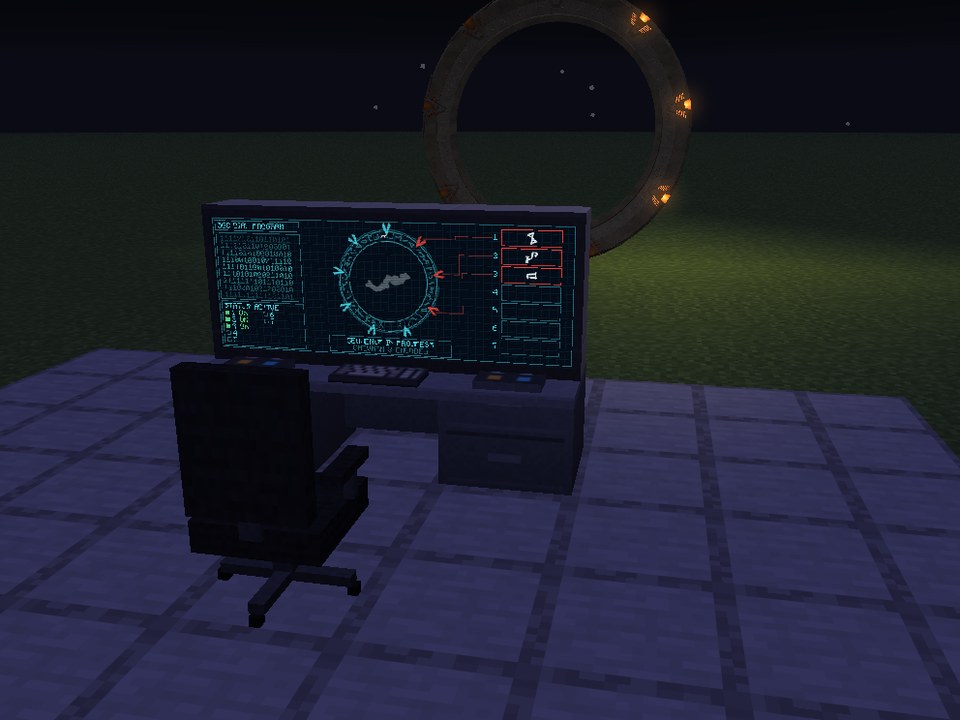
The Dialing Computer is the SGC's way to dial a gate: a desk three blocks wide with a wide monitor, worked from an office chair in front of it or standing at it. It dials the nearest gate in reach as the gate's settings say: the slow way, with the ring turning to each symbol and each chevron locking in turn, or the fast way, with every chevron locking at once. Its monitor shows the dialing program to everyone who can see it, and its alarm sounds while a wormhole comes in.
Obtaining
Crafting


- Glass Pane
- Redstone Dust
- Stargate Controller Crystal
- Iron Ingot
- Redstone Comparator
Placing
Place the computer where you want the middle of its desk. Its screen faces you, and the rest of it goes one block to each side and one block up, so it needs a space 3 blocks wide and 2 high. If any of that space is taken, it won't place.
The computer is one structure of six parts. Breaking any part breaks all six, and the computer drops once. Pistons can't move it.
Power
The computer needs gate energy to run: 0.05 GE a tick (energy_per_tick), 1 GE a second, paid once a second while it is switched on. It draws from the power units within 6 blocks of the middle of its desk along each axis (power_reach), nearest first, then from the ZPM consoles, interface carts and hubs within that reach, nearest first. A full power unit runs it for about 14 hours. When nothing in reach can pay, it has no power. Its monitor goes dark, anyone using it is taken off it, and using it says "The computer has no power". It starts again by itself once there is power, within a second. Turn requires_power off to run computers for free.
Use a  Stargate Configurator on it to turn off its own need for power. The computer's owner (the player who placed it) and operators can do that. A computer placed before computers had owners has none, so only operators can.
Sneak and use the computer with an empty hand to switch it off. Its monitor goes dark, anyone using it is taken off it, and it uses no energy. Do the same again to switch it on, or just use it. See Computers.
Linking
The computer links to the nearest gate of any type whose base is within 32 blocks (link_range) of the middle of its desk. It checks every second, and links to another gate if its gate is broken or moves out of reach. Put the gate room in reach, and the computer anywhere that looks down on it.
Using it
Use the computer to work it. If an office chair stands up to 2 blocks (chair_reach) in front of the middle of the desk, facing the computer, and no one sits in it, using the computer sits you in the chair; sitting in the chair yourself does the same. Without a free chair, using the computer steps you up to the front of the desk, standing, as at a MALP console. Other players see you there with your hands on the keyboard. Either way you turn to face the monitor and the Dialing Computer screen opens.
Closing the screen gets you up from the chair, or away from the desk. Getting up from the chair, or walking away from the desk, closes the screen.
Under the dialing program the screen shows the computer's keyboard, drawn in the program's style. Click a key or type it on your own keyboard. Either way it lights and clicks, with the taps of a real mechanical keyboard, deeper for the larger keys.
- The address: a row of boxes along the top fills with the glyphs as you type, up to one symbol for each of the gate's chevrons, 7 or 9 (9 with no gate in reach). The next box shows a blinking cursor.
- Symbol keys: a key for each of the 39 symbols, laid out as a keyboard's: the digits, then QWERTY rows, with
@at the end of the home row and+and.at the end of the bottom row. Each key shows the linked gate's glyph over the character you type it with. Letters need no Shift. - Ctrl+V pastes an address whole, such as
SJVC-5QA-@. Anything that isn't a symbol, such as the dashes, is skipped.
| Key | What it does |
|---|---|
| Dial, or Enter | Dials the address typed. While the gate dials or is open the key is faint and does nothing, but you can still type an address ready, then abort and dial it at once |
| Backspace | Takes back the last symbol. With nothing typed the key is faint and does nothing |
| Clear, or Delete | Clears the address. With nothing typed the key is faint and does nothing |
| Gate's dial / Slow dial / Fast dial | How the computer dials, kept by the computer for everyone who works it. Gate's dial: as the gate's chevrons_lock_on_dial property says, as a DHD dials it; a new computer starts here. Slow: the gate's ring turns to each symbol and its chevrons lock one at a time, as on the show, whatever the gate says. Fast: every chevron locks at once and the wormhole forms straight after, whatever the gate says |
| Iris open / Iris closed (Shield down / Shield up) | Shuts the gate's iris, or raises its shield, if it is open, and opens it if it is shut. The key is red while the iris is open or the shield down, as anything can come through. For a gate with no iris it says NO IRIS, faint, and does nothing |
| Alarm on / Alarm off | Turns the alarm off, or on again, whether a wormhole is coming in or not. It stays that way until changed. The key turns red while the alarm is off |
| Abort | Shuts the gate down while it dials or is open. While the gate is idle the key is faint and does nothing |
| Leave, or Escape | Closes the screen, and gets you up or away from the desk |
A dial from the computer is a dial like any other: it needs the gate's energy, access and a reachable address, as from a DHD. If a dial fails, the reason shows in a red box across the bottom of the dialing program for a few seconds.
Dialing history
To the right of the program and keyboard, the DIAL HISTORY lists the last 10 addresses dialed from the computer (history_size), newest first, for everyone who works it. Each shows its address, written out and in the gate's glyphs, and OK if it opened a wormhole or FAIL if not. Dialing an address again moves it to the top. The computer keeps its history when the world is saved.
- Double click an address to dial it again. While the gate dials or is open, this types it in, ready to dial once the gate is free.
- Tab or the Down arrow chooses the next address, and Shift+Tab or the Up arrow the one before. Enter then dials the chosen address. Typing a symbol, Backspace or Clear goes back to the address you type.
The dialing program
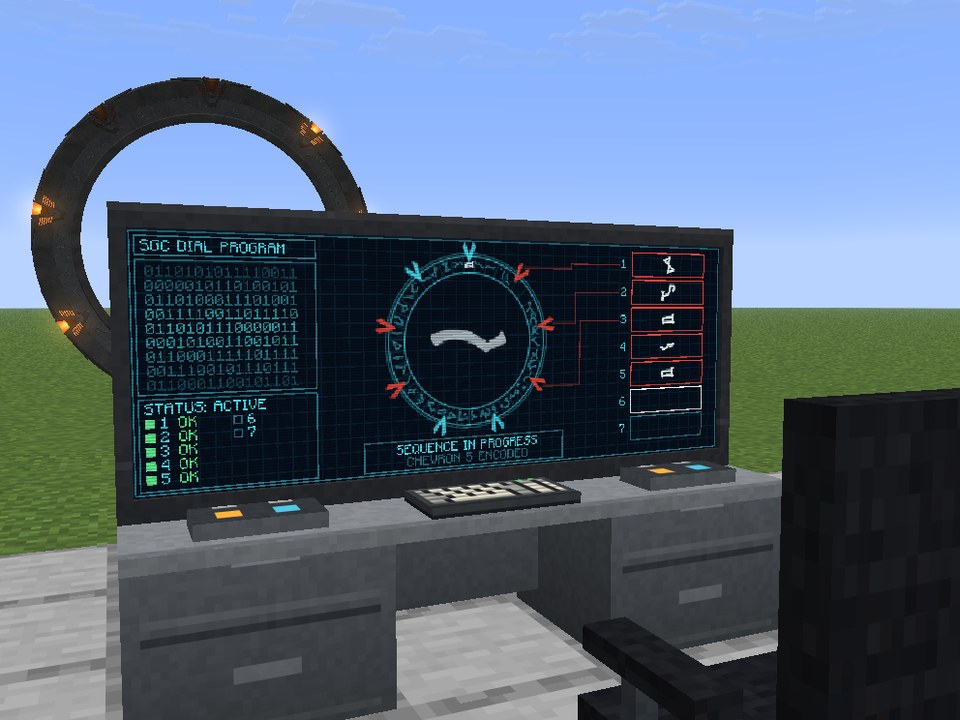
The screen shows the dialing program, after the one on the show. The same picture shows on the monitor in the world, so players behind the operator watch the gate dial.
- Top left: the program's name, SGC DIAL PROGRAM, tagged with its version, which is SGCraft's own, such as V26.3.0.0.
- Left: a column of scrolling data, faster while the gate is busy, and the status box: ACTIVE, IDLE or OFFLINE, a light and OK for each chevron locked, and the iris or shield state.
- Middle: the gate's ring, its glyphs turning as the real ring turns, with its 7 or 9 chevrons. As the gate dials, the symbol being dialed shows large in the middle of the ring. When its chevron locks, the chevron turns red and the symbol flies to its box.
- Right: a numbered box for each symbol of the address, wired to its chevron once locked. While the gate is idle, there is a box for each of its 7 or 9 chevrons, and the status box shows a light for each. The next box blinks while its symbol is dialed. When the caller hides its address, each box it locks flickers through random symbols in red and never settles on the real one.
- Bottom: the status line, such as SYSTEM READY, SEQUENCE IN PROGRESS with CHEVRON 3 ENCODED, CHEVRON 7 LOCKED, WORMHOLE ESTABLISHED or WORMHOLE DISENGAGED. With no gate in reach of the computer, the ring says NO GATE FOUND in red, and so does the status line.
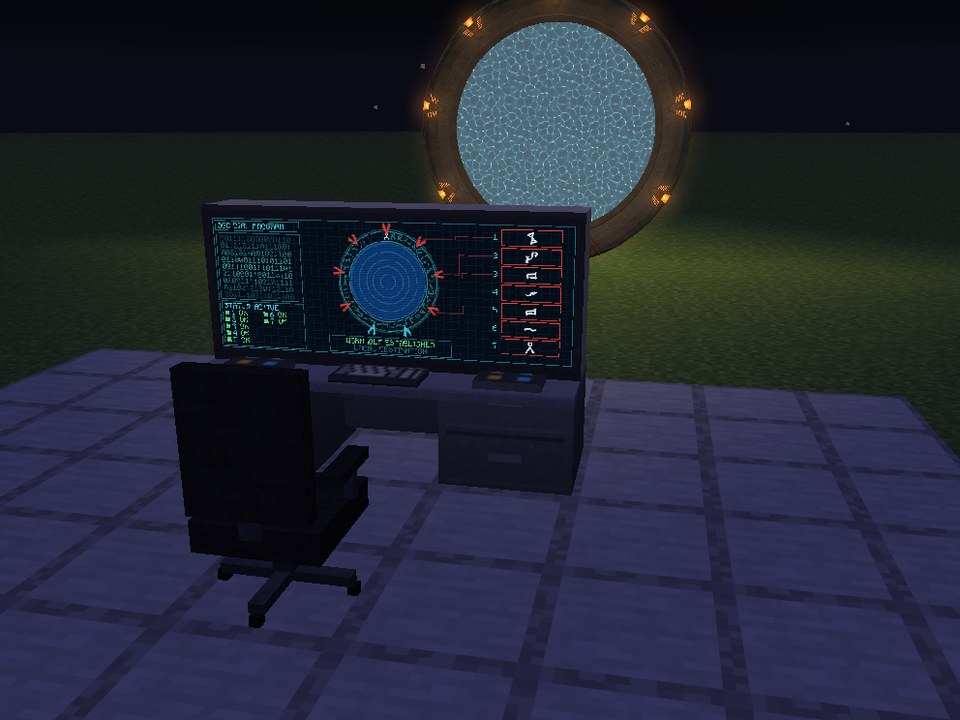
An incoming wormhole flashes the screen's border red. The status line says where it comes from, by how many symbols the caller dialed: LOCAL ACTIVATION for 7, from this world; OFFWORLD ACTIVATION for 8, from another world; and OFF-REALITY ACTIVATION for 9, from another group of worlds. Once it opens, the line says INCOMING WORMHOLE, with FROM THIS WORLD, FROM OFFWORLD or FROM ANOTHER REALITY under it, or ALARM OFF while the alarm is off. While a caller that hides its address dials in, the line under the activation says ADDRESS HIDDEN in place of the chevron count. A wormhole the computer dialed shows WORMHOLE ESTABLISHED with LOCAL DESTINATION, OFFWORLD DESTINATION or OFF-REALITY DESTINATION. An open wormhole fills the ring with the event horizon.
The alarm
While a wormhole comes in to the computer's gate, from its first chevron until it shuts, the computer sounds a klaxon, over and over. Anyone working the computer can press Alarm off to quiet it, before a wormhole comes in or while one does. It stays off for every wormhole after, until someone presses Alarm on. While it is off, the monitor shows ALARM OFF for each wormhole coming in. The alarm is SGCraft's own sound, made by tools/computer/make_alarm.py. A resource pack can replace assets/sgcraft/sounds/computer_alarm.ogg with another.
The program draws a Pegasus gate in Pegasus glyphs and a Universe gate in Universe glyphs. A Universe gate's glyphs are spaced as on its ring, with no @. Every other gate, the Ori supergate among them, shows the Milky Way glyphs. The ring on the screen turns for Milky Way and Universe gates and stays still for Pegasus and Ori gates, as their real rings do.
Players within 48 blocks see the monitor. The picture is drawn 20 times a second, only while someone can see it.
Settings
The computers object of config/sgcraft-server.json:
| Setting | Default | What it does |
|---|---|---|
link_range | 32 | How far from the computer, in blocks, the base of the gate it dials may be (1 to 64) |
chair_reach | 2 | How far in front of the computer, in blocks, its chair may stand (1 to 4) |
requires_power | true | Whether dialing computers and MALP consoles need gate energy to run |
energy_per_tick | 0.05 | How much gate energy a computer uses each tick while switched on; it may be a fraction |
power_reach | 6 | How far from a computer, in blocks along each axis, the power units and ZPM blocks it draws on may stand (1 to 16) |
history_size | 10 | How many of the addresses last dialed from a computer its screen lists, to dial again (0 to 10, 0 keeps none) |
The settings screen changes them too, on its Gates tab.
Commands
/sgcraft computers shows the settings. /sgcraft computers link_range <blocks>, chair_reach <blocks>, requires_power <true|false>, energy_per_tick <energy>, power_reach <blocks> and history_size <addresses> change them. Both need permission level 2. See Commands.
 Puddle Jumper